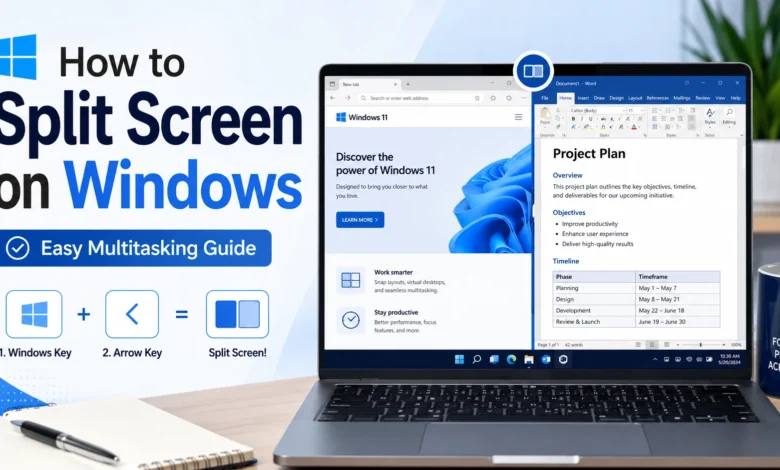
If you want to know how to split screen on Windows, the fastest method is simple. Open two applications, then drag one window to the left or right edge of the display until an outline appears. Release it, then choose the second application from the thumbnails that appear. You can also press Windows key + Left Arrow or Windows key + Right Arrow to snap the active window instantly.
Windows 11 adds extra options through Snap Layouts, offering several preset arrangements beyond a simple half-and-half view. Windows 10 relies mainly on Snap and Snap Assist, which still work well for viewing two windows side by side.
Quickest Way to Split Screen on Windows
Open the two applications you plan to use together, such as a browser and a document. Select the title bar of the first window and drag it toward the left or right edge of the screen. A placement outline will appear, showing where it will land.
Release the mouse button, then pick the second application from the thumbnails Windows displays. You can drag the center divider afterward to give one window more space than the other.
What Is Split Screen on Windows?
Split screen on Windows means viewing two or more open windows on the display at once, instead of switching between them. Microsoft calls this feature Snap, and it works across modern Windows versions. Learning how to split screen on Windows helps you keep related information visible without constantly minimizing windows.
This is useful for comparing documents, taking notes during a video, or moving data between a spreadsheet and a form. It does not create a second physical display; it only rearranges windows already open on your existing screen.
How to Split Screen on Windows With a Mouse
Open the first application and select its title bar. Drag it toward the left or right edge of the screen until a transparent placement outline appears, then release the mouse button to snap it into place.
Windows should then show thumbnails of your other open applications through Snap Assist. Select one to fill the remaining space. If Snap Assist doesn’t appear automatically, manually drag a second window to the opposite edge instead.
How to Split Screen With a Keyboard Shortcut
The Windows split-screen shortcut lets you skip the mouse entirely. Press Windows key + Left Arrow to snap the active window to the left half of the screen, or Windows key + Right Arrow for the right half. These shortcuts only affect the currently selected window.
After the first window snaps, Windows typically shows thumbnails so you can choose another application for the remaining space. Adding Up Arrow or Down Arrow can move a window into a corner on supported systems. Alt + Tab is not a split-screen shortcut; it only switches between open applications.
How to Split Screen on Windows 11
Anyone wondering how to split screen on Windows 11 can start with a simple drag to the screen edge or the Windows key + Arrow shortcut. Once the first window is positioned, Snap Assist suggests other open applications to fill the remaining space.
Windows 11 also includes preset Snap Layouts, and the exact layouts available can differ depending on screen size, resolution, and display scaling. Not every Windows 11 device shows identical choices.
How to Use Snap Layouts on Windows 11
Hover your pointer over the maximize or restore button near the top-right corner of any open window. A menu will appear showing available layouts for your display. Select a section to place that window there, and Snap Assist will suggest other applications for the remaining spaces.
You can also press Windows key + Z to open this menu with the keyboard, choose a layout, select a position, and fill the remaining sections with other applications. This shortcut belongs to Windows 11 and is not the standard method on Windows 10.
How to Split Screen on Windows 10
Windows 10 users can split screen on Windows using the same core dragging method: select a window’s title bar and drag it to the left or right edge until the placement outline appears, then release it.
Windows key + Left Arrow and Windows key + Right Arrow work the same way as on newer versions, and Snap Assist still suggests another open application for the remaining space. The Windows 11-style Snap Layouts menu isn’t available in the same form here, and Windows key + Z shouldn’t be relied on as the standard method on Windows 10.
Windows 11 Versus Windows 10 Split Screen
| Feature | Windows 11 | Windows 10 |
| Drag windows to edges | Supported | Supported |
| Windows key + Arrow shortcuts | Supported | Supported |
| Snap Assist | Supported | Supported |
| Preset Snap Layouts | Supported, varies by device | Not available in the same form |
| Windows key + Z layout menu | Supported | Not the standard method |
| Corner snapping | Supported | Supported |
| Resizable divider | Supported | Supported |
| Settings location | Settings > System > Multitasking | Settings > System > Multitasking |
Both versions offer dependable ways to view two windows at once without special software.
How to Split the Screen Into Three Sections
On supported Windows 11 systems, Snap Layouts may include a three-window arrangement, depending on screen size. Hover over the maximize button, select the three-window layout if it appears, choose a zone, then let Snap Assist fill the rest.
If that layout isn’t offered, build one manually: snap one window to a full half of the screen, then snap two more into the corners of the remaining half. Narrow laptop screens may not comfortably fit three windows.
How to Split the Screen Into Four Sections
Open all four applications first, then drag each window toward a different corner of the screen, releasing it once the placement outline appears in that quarter. Repeat for each remaining window.
Windows 11 users may also select a four-window Snap Layout when available instead of dragging each window individually. Because each quarter becomes fairly small, this layout works best on a larger display, and not every application adjusts well to a compact space.
How to Resize Split-Screen Windows
Move your pointer over the divider between snapped windows until it changes to a resize cursor, then drag it to give one application more room than the other. Adjoining windows often resize together to keep the layout balanced.
To remove an application from the layout, drag it away from its snapped position or select maximize to return it to full screen. Some applications have a minimum width that limits how far they can shrink.
How to Split Screen on a Windows Laptop
If you’re wondering how to use split screen on laptop devices, the same Snap methods used on desktops apply here. Use the touchpad to drag a window’s title bar toward the edge, or rely on the Windows key + Arrow shortcuts.
Because laptop screens are often smaller, arranging three or four windows at once can make text harder to read. For most laptops, two windows side by side offers the clearest workspace.
How to Split Screen Using a Touch Screen
Press and hold an application’s title bar, then drag it toward an edge or corner using your finger. Once the placement outline appears, lift your finger to snap the window into place, then select another open application to fill the remaining space.
Touch behavior can vary depending on the device, Windows version, tablet mode, and application, so it’s worth testing how your specific apps respond before relying on it regularly.
How to Split Screen on Multiple Monitors
You can snap windows independently on each connected monitor. To move a window to a different monitor before snapping it, select it and press Windows key + Shift + Left Arrow or Windows key + Shift + Right Arrow.
Check your display arrangement through Settings > System > Display to see how your monitors are positioned. Arranging multiple monitors is a separate topic from dividing a single screen, though both can be used together.
How to Use Split Screen for Browsers
Placing two separate browser windows side by side works like splitting any other pair of applications: drag one to the left edge and the other to the right, or use the Windows key + Arrow shortcuts.
Two tabs inside one browser window can’t normally occupy separate Snap positions on their own. Drag a tab away from its window to create a new standalone window that can be snapped independently, which is useful for comparing pages or researching while writing.
How to Compare Two Documents Side by Side
Open each file in its own application window, then drag one to the left edge and the other to the right edge so both remain fully visible without scrolling back and forth.
Some programs, including Microsoft Word, offer their own internal side-by-side viewing tools, which are different from Windows Snap. The Windows-level method is generally more useful when comparing files from different applications. Viewing reports side by side is also useful when comparing campaign results or checking information from tools such as influencer tracking software.
How to Exit Split Screen
Select the maximize button on one window to return it to full screen, drag a snapped window away from the screen edge, or close one of the applications you were using.
Closing one window doesn’t always cause the remaining window to maximize automatically, so you may need to resize it manually afterward. Using the Windows key with an arrow key can also help reposition a window instead of fully exiting the layout.
How to Enable Snap Windows
If split screen features seem missing, go to Start > Settings > System > Multitasking and make sure the Snap windows toggle is turned on. This setting controls automatic snapping and Snap Assist suggestions.
Expanding this section often reveals extra preferences, such as showing suggested apps or displaying layouts when hovering over the maximize button. Wording can vary slightly between Windows versions and updates.
Why Split Screen Is Not Working
Common causes include a disabled Snap windows setting, an application running in full-screen mode, or a program with a fixed minimum size. A low display resolution, a temporary glitch after a Windows update, or dragging from inside the content instead of the title bar can also interfere.
If the maximize button is missing, that application may not support snapping at all. The safest fix is usually adjusting settings, restoring the window, or restarting the affected application.
How to Fix Snap Windows
Confirm Snap windows is enabled under Settings > System > Multitasking, and make sure the application isn’t running in full-screen mode. Restart the affected application, then try the Windows key + Arrow shortcut again.
Check your display resolution and scaling settings, restart your computer, and install any available Windows updates. Testing another application can help confirm whether the issue is limited to one program.
Common Split-Screen Mistakes
Pressing Alt + Tab and expecting a split-screen result is a common mistake, since it only switches between applications. Dragging from inside the content instead of the title bar, or releasing a window before it reaches the edge, can also prevent snapping.
Trying to snap a full-screen window, expecting Windows 10 to show Windows 11 Snap Layouts, confusing browser tabs with separate windows, and trying to fit too many applications on a small display are other frequent issues worth avoiding.
Best Ways to Use Split Screen
Split screen fits naturally into many tasks: keeping a research browser beside a document, taking notes during an online class, comparing two documents, or watching a tutorial while following the same steps elsewhere. Split screen can be particularly helpful for remote workers who need to manage communication, research and documents at the same time. You can also explore these practical work-from-anywhere productivity tools to create a more efficient digital workspace.
Other examples include managing email beside a calendar, copying information between applications, monitoring a call while working, and comparing prices or specifications across two browser windows.
Useful Windows Multitasking Shortcuts
| Shortcut | Purpose |
| Windows key + Left Arrow | Snap the active window to the left half of the screen |
| Windows key + Right Arrow | Snap the active window to the right half of the screen |
| Windows key + Up Arrow | Maximize the active window |
| Windows key + Down Arrow | Restore or minimize the active window |
| Windows key + Z | Open Snap Layouts (Windows 11) |
| Alt + Tab | Switch between open applications |
| Windows key + Tab | Open Task View to see open windows and desktops |
| Windows key + Shift + Left Arrow | Move the active window to the monitor on the left |
| Windows key + Shift + Right Arrow | Move the active window to the monitor on the right |
Quick Split-Screen Guide
| Goal | Method | Shortcut |
| Place a window on the left | Drag title bar to the left edge | Windows key + Left Arrow |
| Place a window on the right | Drag title bar to the right edge | Windows key + Right Arrow |
| Open Windows 11 Snap Layouts | Hover over the maximize button | Windows key + Z |
| Choose another application | Select a thumbnail from Snap Assist | None |
| Move a window between monitors | Drag the window to another display | Windows key + Shift + Left/Right Arrow |
| Open Task View | View all open windows and desktops | Windows key + Tab |
| Exit a snapped layout | Maximize or drag the window away from the edge | Windows key + Up Arrow |
Conclusion
Learning how to split screen on Windows gives you a fast way to view two or more applications at once, using a mouse, a keyboard shortcut, or Snap Layouts. Dragging a window to the left or right edge remains the easiest universal method on both Windows 11 and Windows 10.
For speed, Windows key + Left Arrow and Windows key + Right Arrow snap windows instantly. Windows 11 users can also use preset layouts through the maximize button or Windows key + Z. If split screen stops working, check that Snap windows is enabled under Settings > System > Multitasking.
FAQs
How do I split my screen into two windows?
Open both applications, then drag the title bar of one window to the left or right edge until a placement outline appears. Release it, then select the second application from the Snap Assist thumbnails to complete the layout.
What is the Windows split-screen shortcut?
The main shortcuts are Windows key + Left Arrow and Windows key + Right Arrow, which snap the active window to one half of the screen. On Windows 11, Windows key + Z also opens the Snap Layouts menu.
How do I split screen on Windows 11?
Drag a window to the screen edge or use the Windows key + Arrow shortcuts, just as on earlier versions. Windows 11 also offers Snap Layouts, opened by hovering over the maximize button or pressing Windows key + Z.
Can I split my screen into four sections?
Yes, drag four open applications toward separate corners of the screen to fill each quarter. On supported Windows 11 systems, you may also select a four-window Snap Layout instead of positioning each window manually.
Why is split screen not working on Windows?
Common causes include a disabled Snap windows setting, an application running in full-screen mode, or a program with a fixed minimum size. Checking Settings > System > Multitasking and restoring the window often resolves the issue.
How do I turn off split screen?
Select the maximize button on one of the snapped windows to return it to full screen, or drag the window away from the screen edge. You can also close one application, though the remaining window may need manual resizing afterward.